Electronic
Signatures and Encryption
Graphical User Interface (GUI)
Part
1/2
OpenOffice.org
2.0 (OOo) and StarOffice (SO) 8
|
Document - ID
|
Specification
Owner
|
Last
Change
|
Status
|
|
|
Frank Loehmann
|
06/118/2004
|
Draft
|
|
|
|
Conforms to
|
|
|
Applies to
|
Writer, Calc,
Impress, Draw, Scripting
|
|
Task ID(s)
|
i20883,
102146
|
|
Category
|
Feature
|
The following spec defines only user
interface/interaction (UI/GUI).
Please see also see
Part 2 and 3:
for technical issues.
Abstract
Security for office document content can be
divided into two features, digital signatures and encryption.
Digital signatures themselves are a relative new
topic for office applications. However, the requirement to protect
data from being modified is existing for a long time. In the past, it
has been addressed by features that protect documents from being
edited within the office application. With digital signatures, these
features will be enhanced to offer secure protection of document
content, inside OpenOffice.org(OOo)/StarOffice
(SO), and outside of it.
Macro security is a very important topic, because
when you download some macros or receive them via email you can't
know if you can trust them or if they may harm your system.
You can not easily figure out if the macro could
do any harm, so the decision whether to trust a macro or not to trust
can be made based on the trustworthiness of the macro author. But how
can you know that the macro really comes from the author it claims to
come from, or that it was not modified by somebody else?
The best way to do this are digital certificates
and signatures. The author can sign the macro with his private keys,
everybody can verify the signature with the authors public keys. The
digital signature will also assure that the content was not modified.
Encryption is a feature that is supported by
office applications for a long time. Enhancement in this area mainly
affected the encryption algorithm itself, that became more secure.
However, since there was no standardized way how encryption
algorithms are applied to documents, processing such document files
outside an office application was elaborate. By supporting new XML
encryption standards, and due to OO.o/SO's XML file format, this will
become much easier.
i-Team Members
|
|
Name
|
E-mail Address
|
|
Specification Owner
|
Frank Loehmann (FL)
|
frank.loehmann@sun.com
|
|
User Experience
|
Frank Loehmann (FL)
|
frank.loehmann@sun.com
|
|
Development
|
Michael Brauer (MIB)
|
michael.brauer@sun.com
|
|
|
Matthias Huetsch
|
matthias.huetsch@sun.com
|
|
Quality Assurance
|
Frank Stecher (FST)
|
frank.stecher@sun.com
|
|
Documentation
|
Uwe Fischer (UFI)
|
Ufi@sun.com
|
Approved for Implementation
|
|
Approved by
|
Date
|
|
User Experience
|
Frank Loehmann
|
01/29/2004
|
|
Development
|
Matthias Hütsch
|
01/29/2004
|
|
Quality Assurance
|
|
|
|
Documentation
|
|
|
|
|
|
|
|
String Review
|
|
|
Document
Change History
|
Rev. Level
|
Change
|
Initials
|
Date
|
|
1.0
|
Working of 1. Draft
|
FL
|
10/23/2003
|
|
1.1
|
Add Q PRD Issues
|
FL
|
10/30/2003
|
|
1.2
|
Create "Final" Draft
|
FL
|
01/23/2004
|
|
1.3
|
Work on last changes
|
FL
|
01/26/2004
|
|
1.4
|
Work on last changes
|
FL
|
01/27/2004
|
|
1.5
|
Work on finalization and splitting
specification into 3 parts
|
FL
|
01/29/2004
|
|
1.5
|
Change "Passwort" to
"Kennwort" in German
|
FL
|
04/01/2004
|
|
1.6
|
Add macro signing behavior and make small
changes to GUI
|
FL
|
05/27/2004
|
|
1.7
|
Add 4 new dialogs to Add... and view a
signatures + add comments from MT
|
FL
|
05/28/2004
|
|
1.8
|
Work on comments from FS
|
FL
|
06/11/2004
|
Glossary
|
Term
|
Description
|
|
digital signature
|
Forgery is a growing concern among Netizens.
After all, who's to say that a message with your name on it is
really from you and not somebody pretending to be you? Digital
signatures are a means of proving that a file or email message
belongs to a specific person, much as a driver's license proves
identity in real life. Digital signatures have the added benefit
of verifying that your message has not been tampered with. When
you sign a message, a hash function--a computation that leaves a
specific code, or "digital fingerprint"--is applied to
it. If the fingerprint on the recipient's message doesn't match
the original fingerprint, the message has been altered.
Digital signatures are often used in
combination with strong-encryption software to create a secure
channel of communication, in which both privacy and identity are
protected.
|
|
Encryption
|
Encryption is the process of changing data
into a form that can be read only by the intended receiver. To
decipher the message, the receiver of the encrypted data must
have the proper decryption key. In traditional encryption
schemes, the sender and the receiver use the same key to encrypt
and decrypt data. Public-key encryption schemes use two keys: a
public key, which anyone may use, and a corresponding private
key, which is possessed only by the person who created it. With
this method, anyone may send a message encrypted with the
owner's public key, but only the owner has the private key
necessary to decrypt it. PGP (Pretty Good Privacy) and DES (data
encryption standard) are two of the most popular public-key
encryption schemes.
|
|
Digital Certificate
|
Citing concerns about security, many people
are still wary of online transactions. In an attempt to assuage
those fears, software vendors, security specialists, and online
vendors have developed the concept of digital certificates. A
digital certificate is a password-protected file that includes a
variety of information: the name and email address of the
certificate holder, an encryption key that can be used to verify
the digital signature of the holder, the name of the company
issuing the certificate, and the period during which the
certificate is valid. Certificate authorities (CAs) gather
information about a person or company and then issue
certificates. These certificates can be used as online
identification, much in the same way a driver's license can
verify your identity in the physical world. If an email message
or order form comes through with an attached digital
certificate, the recipient can be more confident that the
document is genuine. Several technologies (including SET, SSL,
and Authenticode) are currently competing for market share, each
hoping to become the certificate of choice.
|
|
One-Way Hash Functions
|
A one-way hash function is an important
building block to help achieve data integrity.
Informally, a one-way hash function is a
function that is easy to compute but difficult to reverse.
Also, it is difficult to find two input
values for which the function would compute the same output
value.
You can use the hash function to calculate
the hash value of a document, which can be a lot shorter than
the document content. This value can be stored on a separate
place or as part of the digital signature. Later you can use the
same hash function to compute the hash value of the current
document and verify these hash value to assure the content was
not altered.
|
|
Symmetric Ciphers
|
A symmetric cipher is a transformation,
operated under a secret key, that can translate its input,
called plaintext, to its output, called ciphertext, in such a
way that, excluding cryptanalysis, only those entities
possessing the secret key can recover the plaintext from the
ciphertext.
Examples for symmetric ciphers are the quite
old Data Encryption Standard (DES) and the more secure Advanced
Encryption Standard (AES) .
Symmetric ciphers are also called secret-key
ciphers because the two communicating parties must share a
secret key. This requirement creates some difficulties in key
management and key distribution.
Symmetric ciphers can also be stacked to
improve the crypto strength of the whole system, such as in the
case of triple-DES.
|
|
Asymmetric Ciphers
|
An asymmetric cipher is similar to a
symmetric cipher, but instead it depends on a pair of keys
rather than on only one key. The public key of the pair is used
to encrypt plaintext. The private key of the pair is used to
decrypt ciphertext. The keys are generated such that it is easy
to deduce the public key, given the private key; the reverse,
however, is very difficult. This property enables people to
exchange their public keys over public channels and still
conduct private communications.
A distinct property of some asymmetric
systems is that the encryption and decryption are reversible.
This means that one can apply the decryption operation with the
private key to the plaintext to get ciphertext, and one can
recover the plaintext by applying the encryption operation with
the public key to the ciphertext. In this case, because the
public key is public, no confidentiality protection is provided.
However, because only the holder of the private key can generate
the ciphertext with these systems, the ciphertext can serve as a
digital signature of the plaintext, and anyone with the public
key can verify the authenticity of the signature.
RSA (named for its creators—Rivest,
Shamir, and Adleman) is perhaps the most widely used asymmetric
system that can also be used to produce digital signatures.
Another system, Digital Signature Algorithm (DSA), can perform
only digital signature functions; it cannot be used for
encryption.
To prove that it is the real owner of a
public key, one party can present a certificate for verification
by the other party. A public-key certificate is a digitally
signed statement from one entity, saying that the public key and
some other information of another entity have some specific
value. A chain of certificates is possible, whereby each
certificate contains a public key that is used to certify the
public key in the succeeding certificate. The first certificate,
often called the root certificate, does not have another public
key to certify it. Thus, it normally is a self signed
certificate in that its own public key is used to certify
itself.
|
|
Digital Certificates
|
Users of public-key applications and systems
must be confident that the public key of a subject—a user,
organization, or other entity, such as a service—is
genuine, that is, that the associated private key is owned by
the subject. Public-key certificates are used to establish
trust. A public-key certificate is a binding of a public key to
a subject, whereby the certificate is digitally signed by the
private key of another entity, often called a Certification
Authority (CA).
The standard digital certificate format is
ITU-T X.509.
An X.509 certificate binds a public key to a
Distinguished Name.
Frequently, such a certificate is called an
identity certificate
|
|
Authentication
|
A basic security issue is authentication.
Authentication is the process of confirming the identity of an
entity (a user, a machine, or a machine operating on behalf of a
user).
|
|
Authorization
|
Authentication serves as the basis for
authorization. Specifically, once it knows the identity of a
subject, an application may then specify what set of operations
that subject may perform.
The set of permissions granted can be
configured within an external access control policy.
|
1 Motivation
Many governments in different countries are
starting to move to paper-less communication with their citizens.
Examples for this are the “BundOnline”
e-government initiative in Germany or eGov
in the US.
Since in many cases confidential and personal data
needs to be exchanged it is mandatory to use appropriate security
mechanisms like digital signatures and encryption. This is
necessary in order to ensure that information does not get changed on
the way between the citizen and the public authority.
Also it must be possible to securely
identify the author of a document. This is especially true
for documents that are used for requesting ID related documents like
a driver license, passport or a badge.
People become more and more sensitive about
security issues, and macro viruses can do a lot of harm. People must
have the possibility to configure which macros are allowed to run and
which not, so digital signatures and authentication are very
important for them.
In addition, after tragic events like the airplane
attack on September 11 people are more and more concerned about
security issues in general. Companies fear “cyber attacks”
and viruses like the ILOVEYOU and Melissa macro virus, that caused a
lot of damage.
2 User
Scenarios
This specification covers security and signature
related issues. So the user scenarios are separated into two parts.
2.1 Security Related Scenarios
User A is an attorney at law
and uses OpenOffice to edit/revise legal related documents.
She uses change tracking in her documents very often, but she is
aware of the potential danger of those working draft information
when those might become public, because others can use such
information against herself. Susan spends a lot of time controlling
her final documents, that they do not contain track changes
information anymore, but she always has a bad feeling using change
tracking function at all.
Add a new application privacy
option to warn the user about tracked changes,
versioning and notice information in current documents when
the user saves, prints (not for versioning), PDFs (not for
versioning) or sends a document.
User B works for the Police
Department as a secretary. She works in a department working on
police internal inquiries. She writes down reports recorded on
tapes. Since she has fears that her name could become known to the
reported person, she always takes care that she removes her name
from the properties of the document before saving the file. She
always has a bad feeling, because she has to do it manually, but she
could not remove her name from the User settings options of OOo,
because in letters templates the fields will not be filled in were
she needs her name in.
There is no automatism to do not
store personal information within the file in OOo.
Add an application privacy
option to do not add personal information to the file
properties when saving a file.
User C works as a Controller
in a company. He creates reports in Calc about the departments he is
responsible for as a financial controller. He provides his report to
the executive management of the company, but the report will be
forwarded to the assistant of his manger. The information he is
providing is very crucial and he has fears that the data could be
changed before reaching his manager. Since the manager's assistant
must have rights to print the document, because his manager insists
of having a printed copy for his records, he has to give modify
rights also to the assistant.
No real solution for this
problem until a document rights management model is supported by
OOo. All other solutions like separate passwords for opening
and modifying of a document are only generating a false sense
of security, because a document that could be opened could be
saved as a new doc or could be copied to a new document via the
clipboard and then saved as a new file. Thus allows to modify the
document's copy...
User D works in a bank. He
often has to encrypt documents, because the content is
related to customer's financial background. He is used to work with
MS Office and hasn't used OOo before. When evaluating OOo he tries
to encrypt a document. When calling the Save as dialog, he
recognizes that there is a checkbox “Save with password”.
He is wondering, where he has to enter the password first to save it
with the file. He checks the complete dialog for options to set the
password, but did not find any.
Problem at this point is, that
he did not know that the password dialog appears when saving the
document because he had never used OOo before. Once he is used to
this behavior, the function could be easily accessed.
Change the check box into a
button. If this is not possible, the password dialog has to appear
directly after checking the box or the wording has to be changed.
User E works at the University:
She works on confidential data for her professor, so she decides to
encrypt the document. Since she has worries not to remember the
password, she decides to use her boyfriend's sure and last name as a
password. She types in “Greg Smith” and recognizes the
space between the names. She removes the Space, since she is not
sure if it is allowed within a password. Then she works on the data
and saves her changes frequently. In the evening she closes the
document and shuts down the computer. On the next day she has an
appointment with her professor and tries to open the document. She
types in “Gregsmith” in one word at the password prompt,
since she remembers that she has removed the space in the middle.
Then she confirms the password dialog, but the document could not be
loaded and OOo raises a dialog that the password is wrong. She calls
the product support to decrypt the document, but the support could
not help her. The document's data is lost.
She does not know that passwords
are case sensitive and that spaces would have been allowed within
the password. Furthermore she was not aware, that there is no way
back when the password is lost and so she has not stored the
password in a save place.
Add a hint to the password dialog
to explain that passwords are case sensitive and could contain
spaces and other special characters. Furthermore we have to add a
note that there is no way to decrypt the file without the password.
User F is a Manager: He
uses many different text document templates for his work. One of
these templates is used for the monthly report of his division.
Since these reports contain crucial data, he must ensure that this
document is always saved with a password. He is missing a document
option to force or recommend encrypted saving of the document.
Add
a new document option to prompt a dialog when saving
documents that currently have no given password and recommended to
save this document always with a password.
User G is an English teacher:
She works on courses written as text documents. These documents will
be printed by her customers at home. Some customers saved changes to
the document by mistake in the past, because the documents have read
write access.
Already possible in OOo 1.1.
to publish those document as a PDF files via the integrated PDF
export. Furthermore the setting “Printing modifies document”
in Tools-Option of OOo has to be deactivated. Furthermore the
document could already be opened Read-only by a checkbox in the
File-Open Dialog. But maybe this one is an issue when supporting
signatures, because modifying the document (properties) will
withdraw document's signature.
User H
has to use a specific encryption method, because it fulfills the
defined security requirements
User
can choose between different encryption types. (##FL->MHU:
need more details from Matthias Huetsch).
The dialog to choose from available methods can be called by the
Tools-Options-Security-Security option-Advanced... button.
2.2 Signatures Related Scenarios
Department of Defense (DOD): The DOD
is currently rolling out the DOD Common Access Card to all the
employees. The card holds certificates and supports Java. Microsoft
offers a solution for signing emails and potentially documents using
the DOD Common Access Card.
Typically a user would use encryption for the
email in order to prevent that unauthorized users can access the
content. Attached documents would be signed for non-repudiation and
integrity purposes but not encrypted. The email would not
necessarily be signed, because the enclosed document would be the
critical element. Besides, it often is not desired to encrypt
documents because once the email has been received the document can
be stored at a secure location. However, for both encrypting the
email and signing the document the same technology (i.e. the DOD
Common Access Card) should be used.
##FL->MHU:?
Government: An example for a scenario
in the government space would be a foreign citizen who needs to
extend/renew his passport. First, he would either download a form
from a public web site or via email from a consulate employee. Maybe
this form would already have some personal and confidential data.
Thus this form would have to be both signed and encrypted. Now the
citizen would complete the form, sign and encrypt it and send it
back. Finally the consulate employee would check the content of the
form and send a signed (approved) and encrypted copy back to the
citizen.
Sign Complete OOo Documents
Encrypt complete documents
Education: Signing and encrypting
documents in the education area is interesting, because it can
replace the paper process of correcting dissertations, etc. Students
would send their signed dissertations to professors, who would make
annotation, sign these annotation and send the signed document back
to the student.
Sign Complete OOo Documents
Encrypt complete documents
Protect content via password and allow to
add annotations (comments) or tracked changes only
Sign tracked changes or annotations (not
for OO.org 2.0)
Enterprise: In enterprise environments
signed documents can replace contracts and legal agreements. For
this purpose documents often go through many reviews by different
people that belong to different departments and companies.
Therefore, it's required that it's always verifiable who made
changes to a document at what time. In addition, there are often
predefined approval processes that the office suite and related
collaboration tools could support.
Sign Complete OOo Document
Allow multiple signatures
Protect content via password and allow to
add annotations (comments) or tracked changes only.
User AA writes contracts in Writer. The
contracts will be personalized directly in Writer. Since some parts
must not be changed he want's to protect these section and to sign
them.
Sign Section in Writer (not for OO.org
2.0)
Protection for signed sections (not for
OO.org 2.0)
User AB works on official company wide
calculations. These calculations must not be changed and are tested.
The data will be collected by Managers. Each Manager saves the
document after he has filled in his data and saves it as a new
version in the document. This saved version will be signed.
Sign Single Table in Calc (not for OO.org
2.0)
Sign versions of a document (##FL->MHU/MIB:
Is this covered when Versions is active?)
GUI related requirements
Show Signatures
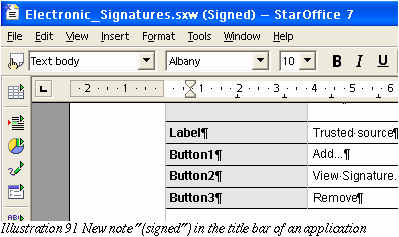
Application title “(Signed)”
Symbol in status bar
Symbol on objects, Calc tables, sections
Document properties
Warning Dialogs
Signature is lost when
saving document in non OOo XML format
save as (a copy) in XML-Format
Deleting a signature
document is modified
Undo after signing = modify = signature
lost
Content is not completely visible due to
view settings
track changes with not accepted/rejected
parts
notices
formatting (i.e. hidden)
linked sections, objects (i.e. graphics,
OLE or DDE)
fields
Renew signature if signed area has been
changed
Withdraw all assigned signatures and sign
new
User AF works in a small company. They want
to use signatures to sign documents, but the do not want to create
official certificates because these cost money. The want to trust
themselves.
Create a self signed Certificate. ##FL->MHU:
What's about this one.
2.3 Macro Security Related Scenarios
Macro
security
Security 18: Authorization, Fine
Grained Macro Security.
OOo should allow to restrict the level
of access to resources that components and scripts have. Configure
policies which code from which author is allowed to read and write
files, make system calls and other things.
Macro security
Security
21: Completely disable scripting.
Done in SO7:
tools/options/security => Run macro never.
Security Level
Security
23: Default macro security settings must be set to “high”.
Security
Level
Security
26: Support high, medium and low security settings. Maximum
security allows only signed macros to run. Medium allows signed
macros to run and asks for execution of unsigned macros. Low
executes all macros without any confirmation.
User AD develops macros in OO.org. The macros
will be attached to documents and will be used within the company.
He has problems that users suppress the execution of this macro, but
the companies management does not allow to disable macro warning
in OO.org.
Sign OOo
Script Projects. The user could trust a source, so that these
macros will be executed automatically without displaying any
further macro warnings.
3 Goals for Macro and Document Security
A must have for OpenOffice.org 2.0 are digital
signatures for macros and authentication, so people can configure
which macros are allowed to run and which not, based on the author of
the macro.
Fine grained macro security, where you can
configure in detail what macros from different authors are allowed to
do would be nice, but this can not be done in the OpenOffice.org 2.0
time frame, because on top of digital signatures and authentication
you need configuration of policies, and each API implementation that
directly accesses any resources must check if the permissions for
that are granted.
Please see scenario section above for detailed
goals of Macro and Document Security based on digital Signatures.
4 Requirements and Dependencies
4.1 Dependencies
The thumbnail feature has to be adjusted when this
feature has been implemented:
http://specs.openoffice.org/appwide/desktop_integration/ooo_file_thumbnails.sxw
4.2 Requirements
Please see scenario section on page 4 (above) for
requirements.
4.3 Technical Dependencies
Please see technical specification for
details:
http://specs.openoffice.org/appwide/security/Technical_Specification_for_Electronic_Signatures_and_Security.sxw
5 Competitive Analyses
5.1 Overview
5.1.1 Products and Links
5.1.2 MS Office XP and Adobe Acrobat 5.0 Comparison
The comparison table below does not include OOo and tell where it's
better or worse, because almost none of the features are available
in OOo 1.1.
Adobe Acrobat seems to be superior over Microsoft Office in the
security area. Therefore, Acrobat should be considered the standard
to which OOo has to compete against.
The green
marked features are most relevant for for OOo 2.0. The yellow ones
have to be further evaluated.
|
Feature
|
MS Office XP
|
Adobe Acrobat 5.0
|
|
Signing documents
|
|
Sign documents
|
yes – Word, Excel, PowerPoint
|
yes
|
|
Sign parts of documents
|
no
|
no
|
|
Multiple signatures on a single document
|
yes
|
yes
|
|
Add metadata to signatures (e.g., reason for
signing, location)
|
no (???)
|
yes
|
|
|
|
Certificates
|
|
Create simple certificates
|
yes, command line tool
|
yes, integrated in application
|
|
Smart card support
|
yes - access via operating system APIs
|
partly – via 3rd party Acrobat
plug-ins
|
|
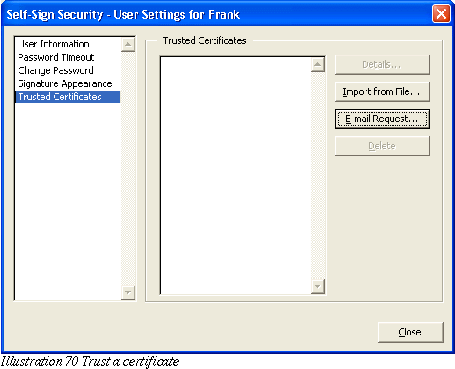
Trusted user certificate list
|
only for macros
|
yes
|
|
|
|
View signature information
|
|
Signed (yes/no)
|
yes - status bar, document title (“Signed”),
options dialog
|
yes, signature window (tree view)
|
|
Name
|
yes
|
yes
|
|
Date
|
yes
|
yes
|
|
Time
|
yes
|
yes
|
|
Verification status
|
yes
|
yes
|
|
|
|
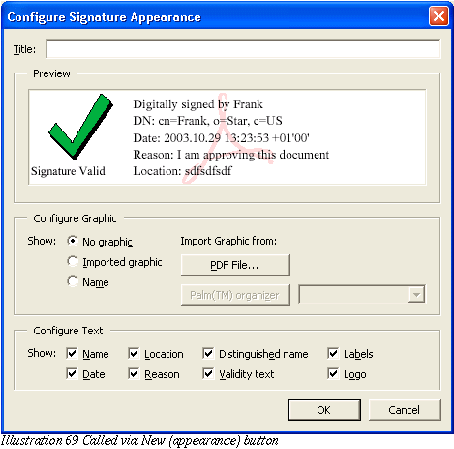
Appearance of signature
|
|
Visual part of the signature can be placed
anywhere in the document
|
no
|
yes
|
|
Handwritten name
|
no
|
yes
|
|
Logo
|
no
|
yes
|
|
Graphic
|
no
|
yes
|
|
Text explaining signing
|
no
|
yes
|
|
|
|
Collaboration
|
|
Track changes between signings
|
no
(no support for multiple
signatures; but support for track changes for protected
documents)
|
yes
|
|
Retrieve earlier signed version
|
???
|
yes
|
|
Compare two signed versions
|
yes
|
yes, side-by-side in tiled window
|
|
|
|
Signature Handler
|
|
Plug able signature handler
|
???
|
yes, Acrobat plug-in
|
|
Default signature handler
|
Microsoft Authenticode
|
Acrobat Self-Sign
|
|
Included support for commercial
certification authorities
|
???
|
Entrust Security
|
|
Other support for commercial certification
authorities
|
Entrust, Verisign, ...
|
3rd party Acrobat plug-ins
|
|
|
|
Encryption
|
|
Encrypt documents
|
yes, Word, Excel, PowerPoint
|
no
|
|
Encrypts parts of documents
|
no
|
no
|
|
Pluggable encryption handler
|
standard encryption (backward
compatibility), CryptoAPI
|
no
|
|
|
|
Protect Document
|
|
Tracked changes (users cannot turn off
tracking)
|
yes
|
yes (for signed documents)
|
|
Comments allowed (content protected)
|
yes
|
yes
|
|
Forms (fields can change, doc. content
protected)
|
yes
|
yes
|
|
Sections (only portions of document can
change)
|
yes
|
no
|
|
Disable document printing
|
no
|
yes
|
|
Disable document changes
|
yes
|
yes
|
|
Disable selecting
|
no
|
yes
|
|
|
|
Macro Security
|
|
|
|
Sign macros
|
yes
|
??(i.e. no special security features for
built-in JavaScript support)
|
|
Only run singed macros
|
yes
|
N??
|
|
Warning for untrusted macros
|
yes
|
??
|
|
Trusted sources list
|
yes
|
??
|
5.2 Security Related UI of Microsoft (MS) Word 2003
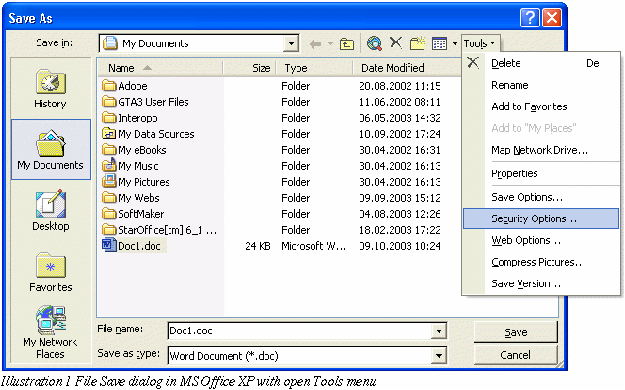
Competition offers a Tools menu in the Save As and the Open dialog
of Office XP. This menu offers the file operations (i.e. delete,
rename and file properties) and save document related options (i.e.
Security Options).
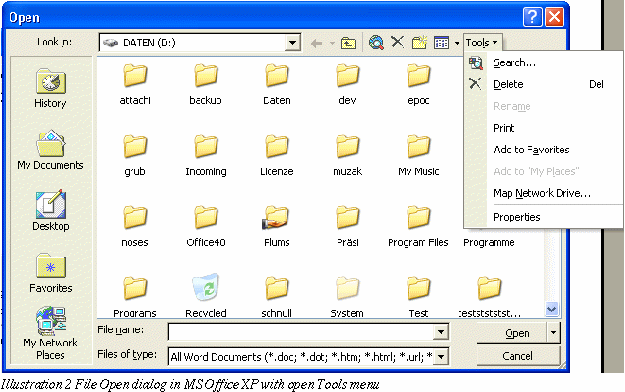
The file Open dialog shown below also has a tools
menu. The available options are the same file related options minus
the following save related options:
Save Options
Security Options
Web Options
Compress Pictures
Save Version
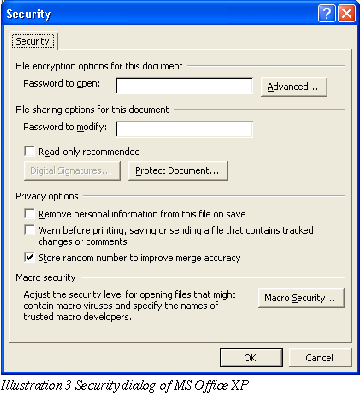
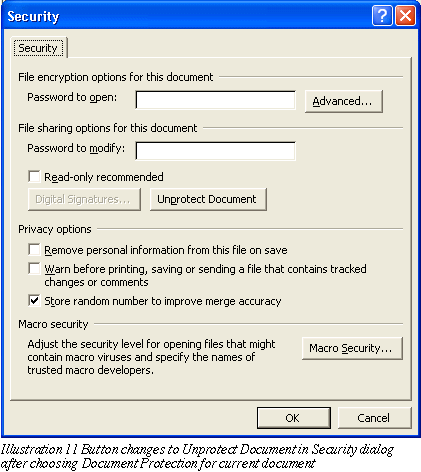
 The
Security dialog of MS Office XP offers settings for document
encryption (separate passwords to open and modify documents),
digital signatures and other protection features of MS
Office. These protection features will be described below.
The
Security dialog of MS Office XP offers settings for document
encryption (separate passwords to open and modify documents),
digital signatures and other protection features of MS
Office. These protection features will be described below.
Privacy options
section in the Security dialog allows to chose if a unique
identifier (UID) is saved with the document and offers a warning
function on saving documents with redlining information.
Furthermore private information could be removed from current
document, when it's being saved.
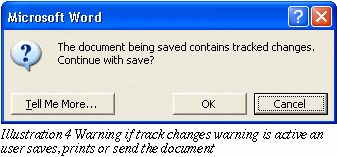
The following dialog appears if warning before
saving, printing or sending document with tracked changes is active.
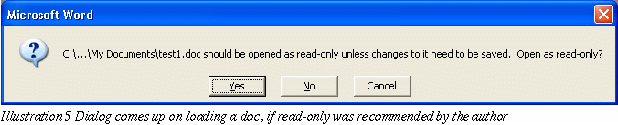
Open a document in read-only mode could be
recommended by the author by choosing “Read-only
recommended” option in the security dialog. When loading
such a document, the following dialog appears on loading the
document.
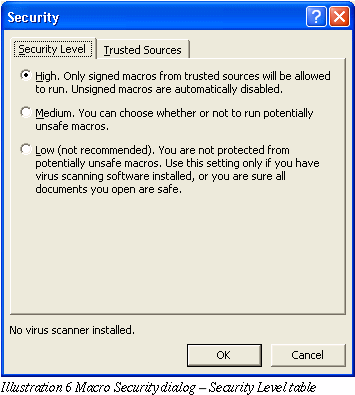
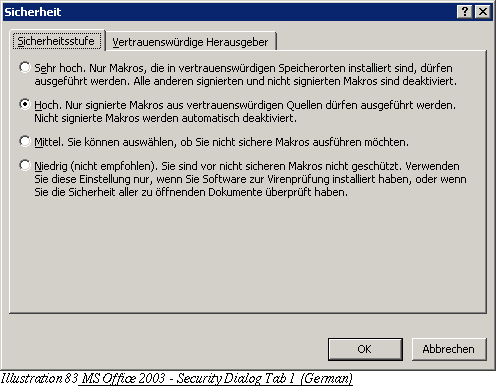
The (Macro) Security dialog has two tab pages. The user can set a
security level for the application?!
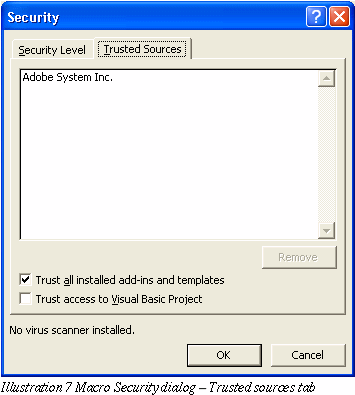
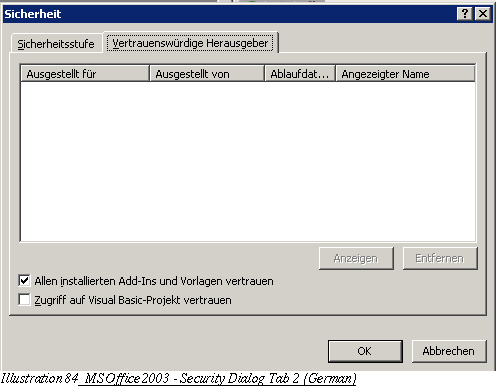
On the second tab the user can trust sources so
that macros signed from those vendors could be
executed without any problems.
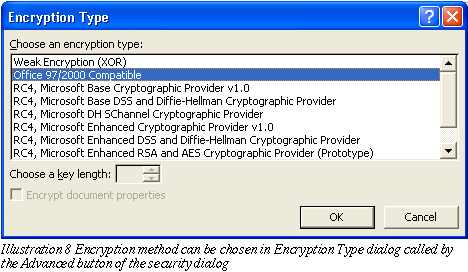
The user can choose the encryption type used for the current
document in the Encryption Dialog. This dialog can be reached by
pressing the Advanced button. Furthermore the user can choose if the
document properties will be encrypted or not.
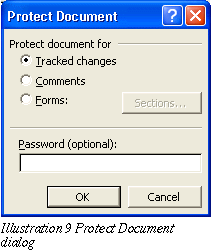
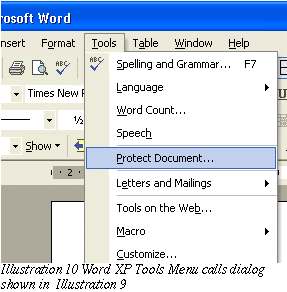
The user can protect the document against
modification. The user can except Sections from this protection
or he can allow to add comments or redlining. The password
protection for this setting is optional.
The Security
dialog changes the Protect Document button to unprotect document, if
protection was chosen for the document.
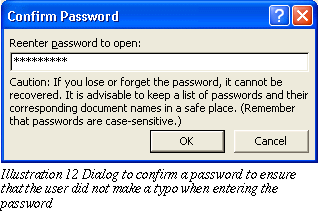
The following dialog is called to confirm
a previously entered password. Furthermore a notice is
provided to inform the user that there is no way of recovering this
document, if the password is lost. And that passwords are case
sensitive.
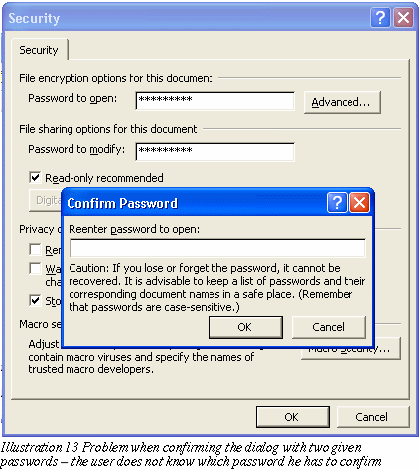
The Security dialog has a design problem, because two passwords
could be entered at once in this dialog, but when the user confirms
the dialog, the appearing password dialog does not contain any
information which of these two passwords has to be confirmed.
The following dialog informs the user that the
document's password gets lost when saving in none-native file
formats.

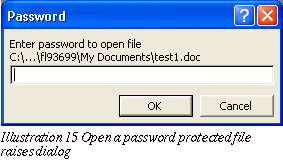
The Password dialog appears when loading a
document which is protected by a password for opening the document.
Dialog also shows a path information to the document being loaded.
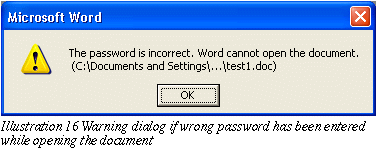
The following dialog appears if the entered
password is invalid.
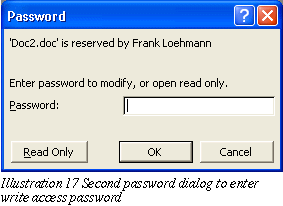
The Password dialog is shown if a password for
modifying has been set for the currently loaded document. User can
open the document in read-only if the user does not know the
password by pressing the Read Only button.
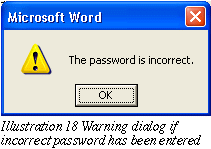
If the user has entered a false password, the
following dialog appears.
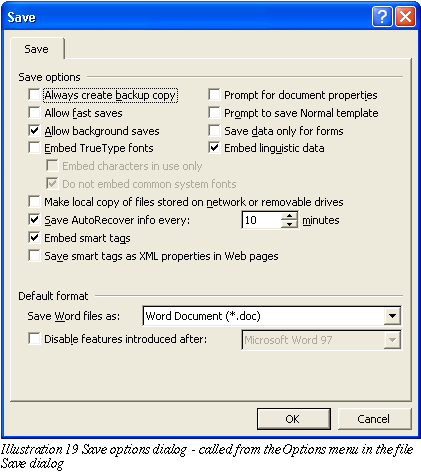
The Tools menu also contains a Save options dialog. The dialog
contains application (Office) related settings only.
5.3 Signatures Related UI of Microsoft Word XP
5.3.1 Self Certifying Program Selfcert.exe
Microsoft Office offers a separate tool to create
Selfcert.exe
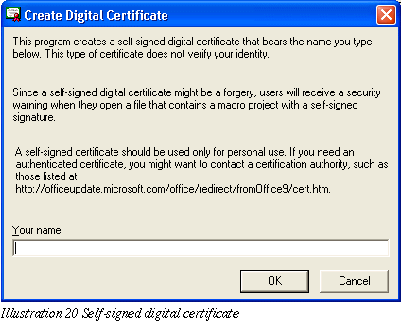
5.3.2 Digital signature Dialog
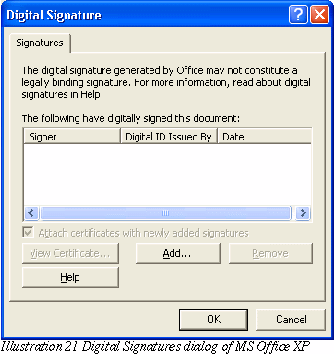
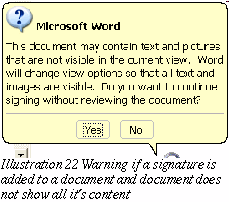
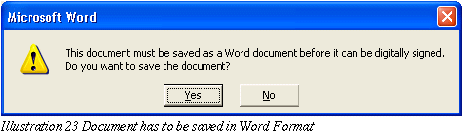

They do not warn
if a certified and modified document is being closed.
A changed document
could not be signed. It is required to add signature again to save
document. Not very usable.

Illustration
25 Warning that unsaved documents have to be saved in Word format
before signing
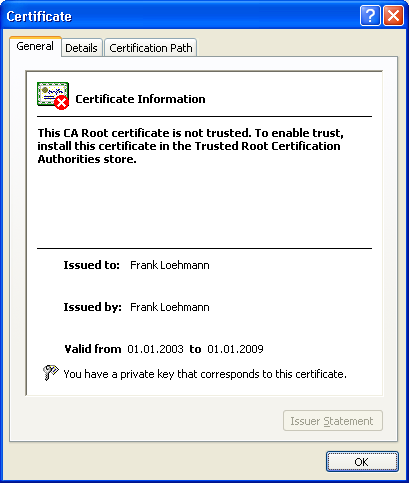
Illustration
27 Certificate Dialog – General tab
5.4 Mozilla 1.4 Certificates and Security Related UIFST: Shouldn't
this be the ones from Mozilla 1.7
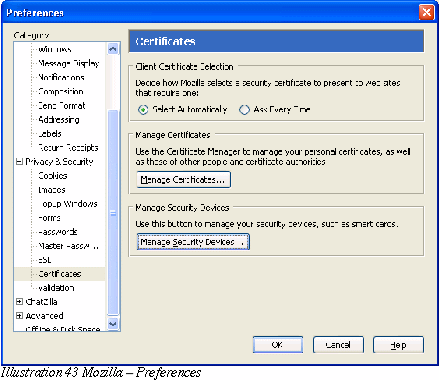
5.4.1 Mozilla 1.4 Security Related UI FST: Shouldn't this be the
ones from Mozilla 1.7
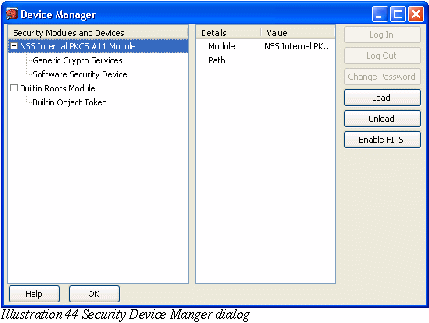
5.4.2 Mozilla 1.4 Certificates Related UI FST: Shouldn't this be the
ones from Mozilla 1.7
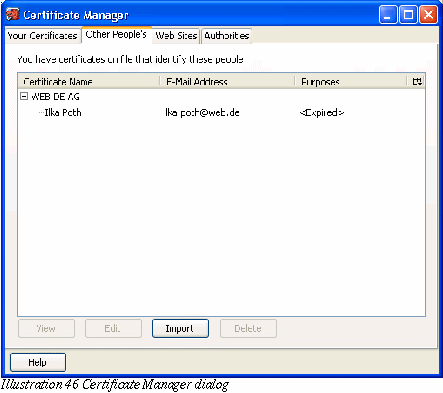
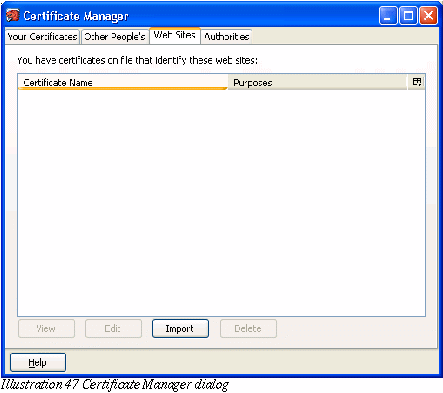
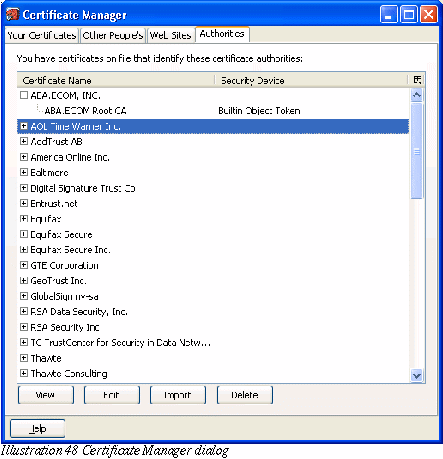
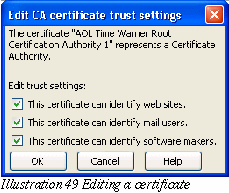
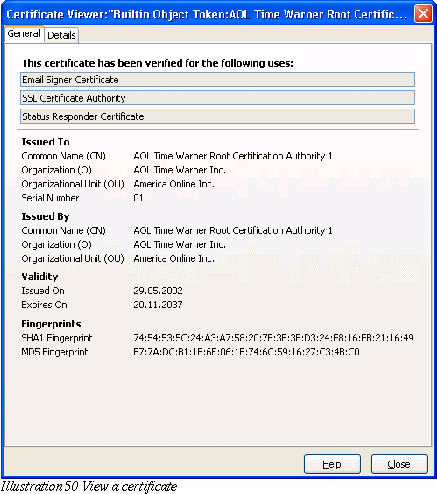
Mozilla uses an own UI to manage certificates.
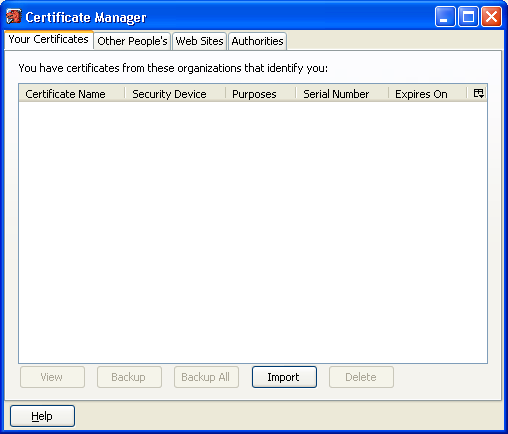
Illustration
45 Certificate Manager dialog
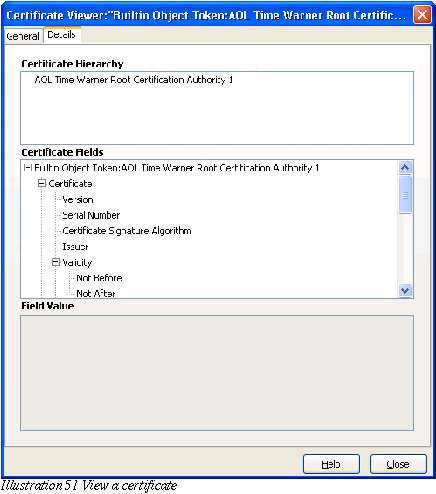
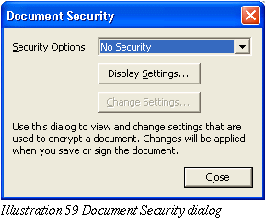
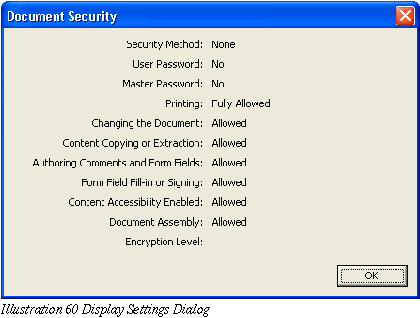
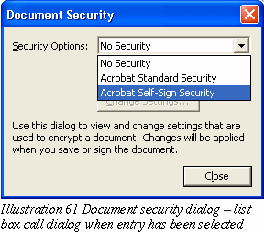
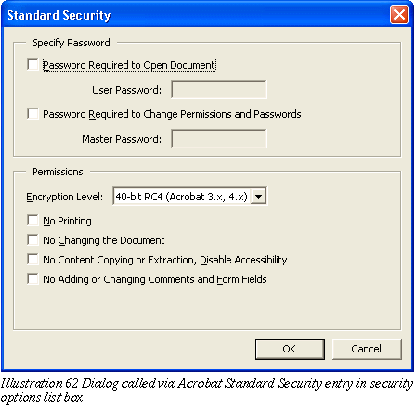
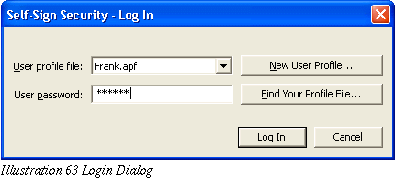
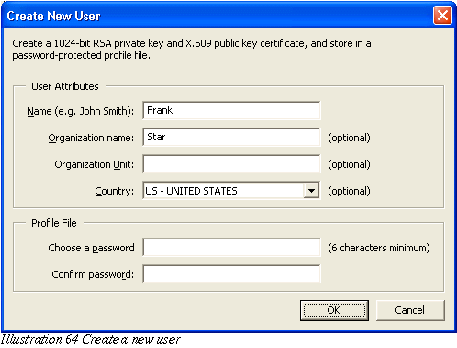
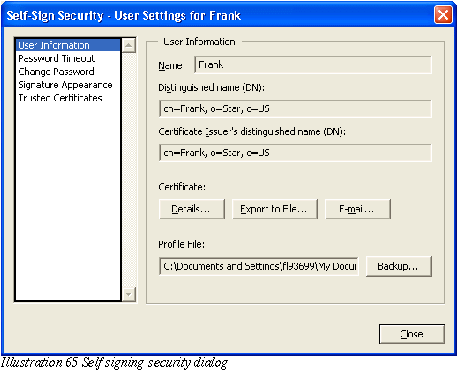
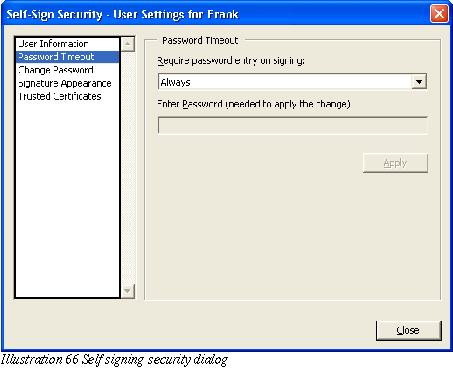
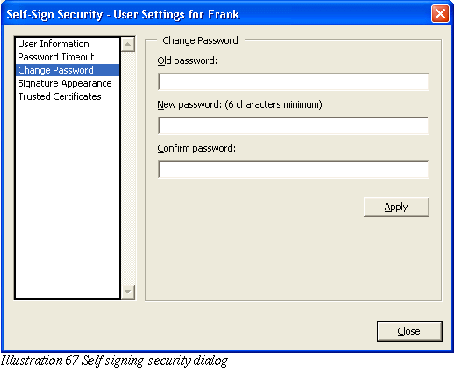
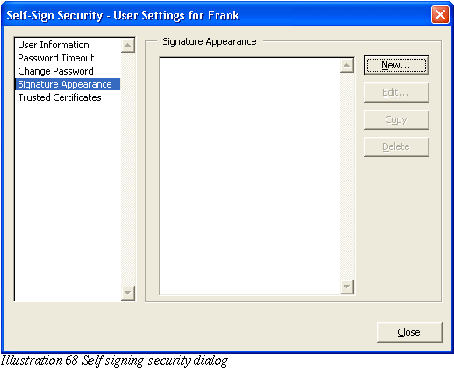
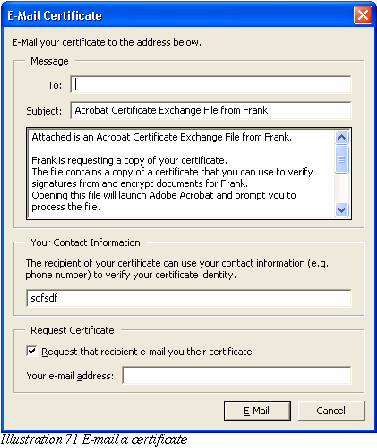
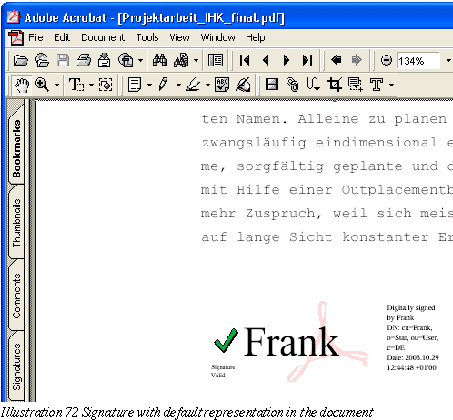
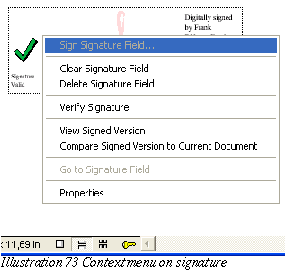
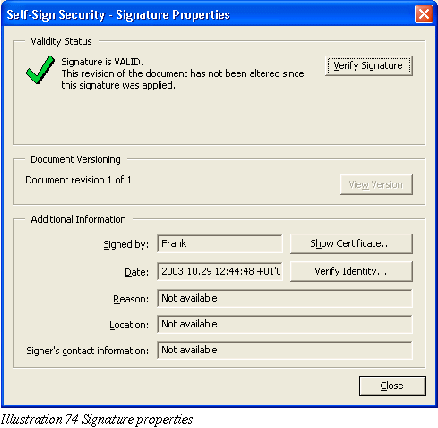
5.5 Adobe Acrobat Security / Signatures Related UI
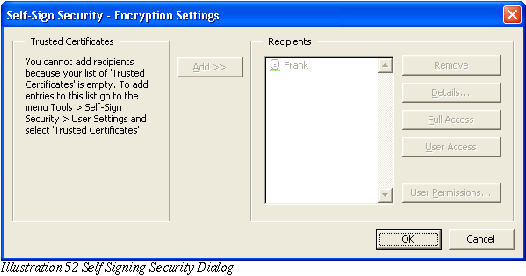
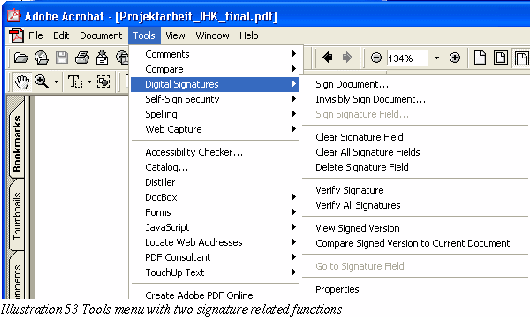
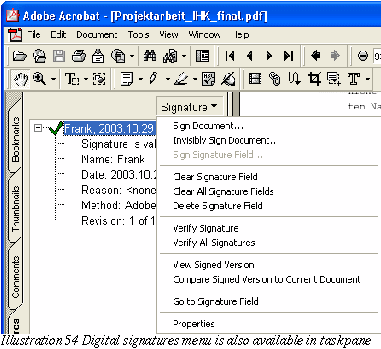
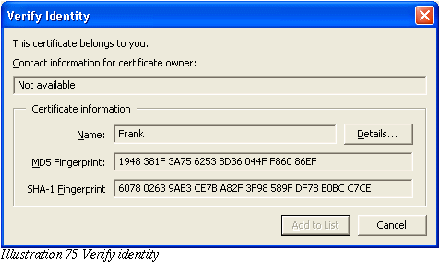
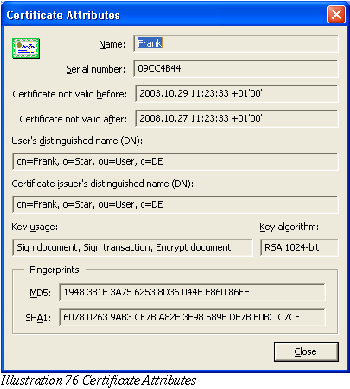
5.6 Signatures Related UI of Microsoft Visual Basic Editor
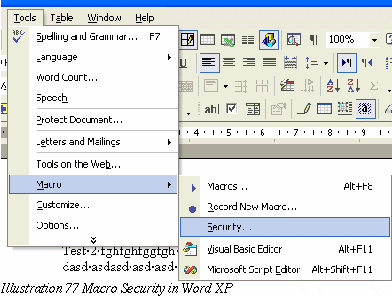
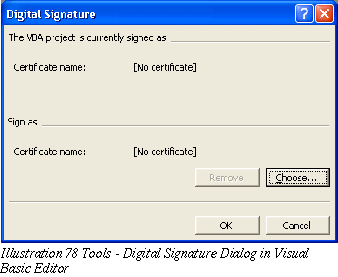
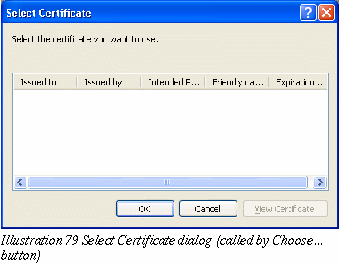
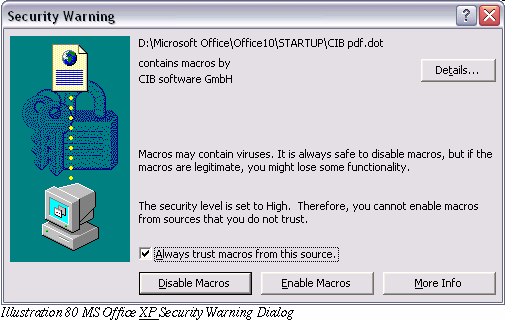
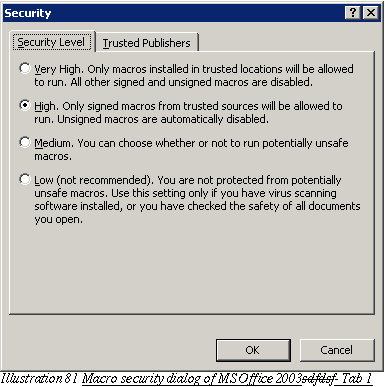
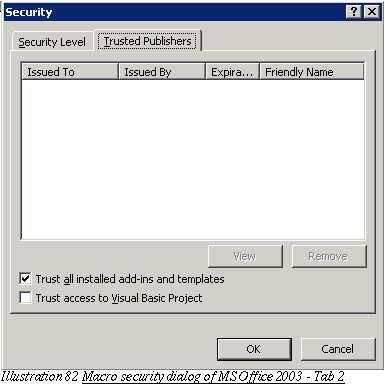
http://office.microsoft.com/assistance/preview.aspx?AssetID=HP052495611033&CTT=98
6 Detailed Specification
This specification defines the basic feature set
for encryption and signing document for OpenOffice.org (OO.org) 2.0.
Please see also see Part 2 for technical
issues:
6.1 Document
encryption
The OO.org document encryption will changed to a W3C conform
encryption. New Options-Security Dialog
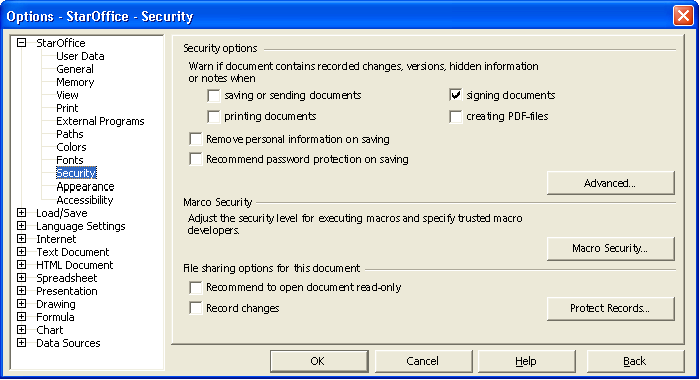
The following dialog replaces the Security tab
page in tools options.
-
|
Item
|
English
|
German
|
Comments
|
|
Label
|
Security options
|
Sicherheitsoptionen
|
|
|
Label
|
Warn if document contains recorded changes,
versions, hidden information or notes when
|
Warnen wenn ein Dokument
aufgezeichnete Änderungen, Versionen, versteckte
Informationen oder Notizen enthält
|
|
|
Label
|
saving or sending documents
|
Speichern oder Senden solcher
Dokumente
|
|
|
Label
|
printing documents
|
Dokument drucken
|
|
|
Label
|
signing documents
|
Dokumente signieren
|
|
|
Label
|
creating PDF-files
|
PDF-Dateien erzeugen
|
|
|
Label
|
Remove personal information on saving
|
Benutzerdaten nicht speichern
|
|
|
Label
|
Recommend password protection on saving
|
Kennwortschutz beim Speichern
empfehlen
|
|
|
|
|
|
|
|
Button
|
Advanced
|
Erweitert
|
|
|
Label
|
Adjust the security level for executing
macros and specify trusted macro developers.
|
|
|
|
Button
|
Macro Security
|
Makro Sicherheit
|
|
|
Label
|
File sharing options for this document
|
|
|
|
Label
|
Recommend to open document read-only
|
|
|
|
Label
|
Record changes
|
|
|
|
Button
|
Protect Records
|
Aufzeichnungen schützen
|
|
|
Button
|
Unprotect Records
|
Schutz aufheben
|
|
6.1.1 Show warning dialogs if the document contains recorded changes,
versions or notices when
“Saving or sending documents” Option (default off)
The following warning dialog appears if one of the following is
contained in a document and the document will be saved (or send as
an email). Furthermore the “saving or sending documents
warning” on the security tab page has to be turned on:
-
|
Item
|
English
|
German
|
Comments
|
|
Dialog text
|
The document being saved contains:
* recorded changes
* notes
* document file contains versions
Do you want to continue?
Button1: Yes
Button2: No
|
|
Displayed are only those things contained
in the current doc.
|
The following warning appears when printing a document, if one of
the following is a visible part of the document and the warning
function itself is turned on in Tools-Options-Security:
shown recorded changes
shown notices
Warning Dialog String List
-
|
Item
|
English
|
German
|
Comments
|
|
Dialog
text
|
The document
being printed contains:
* shown
recorded changes
* shown notes
Do you want to
continue?
Button1: Yes
Button2: No
Button3:
Printing Options...
|
|
Displayed
are only those things currently visible/printable
in the current doc.
|
-
|
Item
|
English
|
German
|
Comments
|
|
Dialog text
|
The document being signed contains:
* recorded changes
* document file contains versions
* notes
* fields
* references to other sources (i.e. linked
sections or linked graphics)
Do you want to continue?
Button1: Yes
Button2: No
|
|
Displayed are only those things contained
in the current doc.
|
The
following warning dialog appears if the PDF export warning in
Tools-Options-Security is turned on and if
the document contains one of the following:
-
|
Item
|
English
|
German
|
Comments
|
|
Dialog text
|
The document being “PDF'ed”
contains:
* shown recorded
changes
* shown notes
Do you want to continue?
Button1: Yes
Button2: No
|
|
Displayed are only those things contained
in the current doc.
|
-
|
Item
|
English
|
German
|
Comments
|
|
Dialog Title
|
Password Protection Recommended
|
|
|
|
Dialog text
|
Due to an application setting it is
recommended to save documents with password protection. Do you
want to assign a password for the current document before
saving?
Button1: Assign password
Button2: Save anyway
|
##
|
[Assign password] button calls the normal
assign password dialog.
[Save anyway]
button saves document without assigning a password .
|
Record
Changes
This
setting activates the changes tracking function for
the current document. Furthermore the records could be protected by
pressing the Protect Records... button. If the records are
protected, the button label changes to Unprotect changes. If the
button is pressed in this state the Enter Password dialog (see
illustration 86 on page 58) appears. If the password is entered
correctly, the button changes back to the initial label Protect
Records.
If the records are protected by a
password and the checkbox for Record Changes will be unchecked, the
password dialog appears as described for above for pressing the
button Unprotect Changes.
Recommend
to Open documents read-only
This
setting will be saved with the current document. If this options is
set and the document is opened, the following dialog appears and
recommends to open the document in read-only mode:
-
|
Item
|
English
|
German
|
Comments
|
|
Dialog text
|
$PATHANDFILENAME should be opened in
read-only mode unless changes to it need to be made. Open in
read-only mode?
Button1: Yes
Button2: No
Button3: Cancel
|
##
|
|
6.2 New Password Dialog
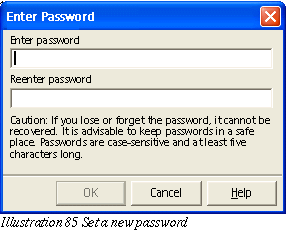
The overworked password dialogs replace the current ones office wide.
The O.K.
Button is disabled until the minimum length of 5 characters hasn't
been entered. The dialog shows a notice about keeping passwords in a
safe place,
the
case-sensitiveness of passwords
the
minimum length of 5 characters.
Note:
If we are able to export (not for OO.org 2.0) encrypted MS
documents, the minimum length of 5 for a password is not valid.
This means that the OK button is always enabled and the notice text
in the password dialog is displayed as follows.
Changed
Warning in Password Dialog for Importing MS Document with passwords
-
|
Item
|
English
|
German
|
Comments
|
|
Text
|
Caution:
If you lose or forget the password, it cannot be recovered. It
is advisable to keep passwords in a safe place. Passwords are
case-sensitive.
|
|
.
|
The password has to be retyped correctly in the "Reenter
Password" field.
-
|
Item
|
English
|
German
|
Comments
|
|
Text
|
Caution:
If you lose or forget the password, it cannot be recovered. It
is advisable to keep passwords in a safe place. Passwords are
case-sensitive and at least five characters long.
|
|
.
|
|
Label
|
Enter
Password
|
Kennwort eingeben
|
|
|
Label
|
Reenter
Password
|
Kennwort wiederholen
|
|
|
Label
|
Enter
password to open the file:
|
Kennwort zum Öffnen der
Datei eingeben:
|
|
If the
the reentered password does not match to the original one, the
following notice dialog appears:
Error
Dialog:
-
|
Item
|
English
|
German
|
Comments
|
|
Notice Dialog
|
The
password confirmation does not match.
Button1:
OK
|
Die Kennwortbestätigung ist
ungültig.
|
Dialog has an OK button.
|
The password dialog is being shown after pressing
the OK button. The focus is then set to the Reenter Password field.
The field itself is empty.
An
overworked Enter Password dialog replaces the current (OO.org 1.1)
dialog. The notice shown is the same as in the define password dialog
above.
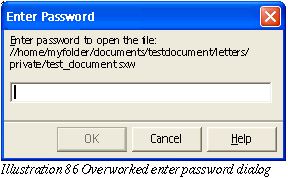
If the
password entered does not match to the document password, the
following dialog appears:
Warning Dialog:
-
|
Item
|
English
|
German
|
Comments
|
|
Notice Dialog
|
The
password is incorrect. The document cannot be opened.
|
Das Kennwort ist ungültig.
Das Dokument kann nicht geöffnet werden.
|
Dialog has an OK button.
|
6.3 The Menu Entries for Signing
6.3.1 Save & Sign entry in the File Menu
The following entries will be added to the menu of
Writer, Impress, Draw,Calc and the basic IDE to sign the current
document content or document macro (in the basic IDE).
-
|
Item
|
English
|
German
|
Comments
|
|
Main Menu entry
|
Save and Sign ...
|
Speichern & Signieren
|
behind current Save all entry in the File
menu. The Save and Sign dialog is called.
|
6.3.2 Entry in File - Send Menu
The following entry will be added to the menu of Writer, Impress,
Draw,Calc and the basic IDE to sign the current document content or
document macro (in the basic IDE).
-
|
Item
|
English
|
German
|
Comments
|
|
Menu entry
|
Signed document as e-mail
|
Signiertes Dokument als E-Mail
|
|
6.3.3 Save and Sign info dialog
The following dialog appears, if the current document is modified and
the document has not been saved to a file.
The following
dialog is shown, if the document is modified and contains a digital
signature:
-
|
Item
|
English
|
German
|
Comments
|
|
Dialog Tile
|
Save and Sign
|
Speichern und Signieren
|
|
|
Dialog text
|
The document has to be saved before signing.
Saving the document removes all present signatures. Do you want
to continue saving?
Button1: Save and Sign...
Button2: Cancel
|
##
|
|
After confirming the
Sign & Save dialog with Save and Sign button, the Save as dialog
appears. After saving the document, the Digital Signature dialog
(please see page 65 in chapter 6.5 below for
dialog details) appears to sign the document.
If the document is
modified and unsigned, the following dialog appears:
-
|
Item
|
English
|
German
|
Comments
|
|
Dialog Tile
|
Save and Sign
|
Speichern & Signieren
|
|
|
Dialog text
|
The document has to be saved before signing.
Do you want to continue saving?
Button1: Save and Sign...
Button2: Cancel
|
##
|
|
If the document is not modified and already signed, the
following dialog appears:
-
|
Item
|
English
|
German
|
Comments
|
|
Dialog Tile
|
Save and Sign
|
Speichern & Signieren
|
|
|
Dialog text
|
The document is signed. Do you want to add
another signature or do you want to remove current signature(s)
and sign again?
Button1: Add signature...
Button2: Cancel
|
##
|
Add signature button calls the Digital
Signature dialog.
|
6.3.4 Open a Signed Document with an Invalid Signature
If a document's signature is invalid, the
following dialog is shown:For Document Content
-
|
Item
|
English
|
German
|
Comments
|
|
Dialog Tile
|
Invalid Document Signature
|
Ungültige Dokument Signatur
|
|
|
Dialog text
|
This digital signed document content does not
match the current document signature.
This could be the result of a document
manipulation or a structural document damage (i.e. due to data
transmission).
We recommend you to not trust the current
document content. Do you want to continue loading the document?
Button1: Yes
Button2: No
|
##
|
Add signature button calls the Digital
Signature dialog.
The "No" button is defaulted.
|
For Document Macros
-
|
Item
|
English
|
German
|
Comments
|
|
Dialog Tile
|
Invalid Macro Signature
|
Ungültige Makro Signatur
|
|
|
Dialog text
|
The digital signed document macros do not
match the current document macros signature.
This could be the result of a document
manipulation or a structural document damage (i.e. due to data
transmission).
We strongly recommend you to not trust the
current macro. Do you want to continue loading the document?
Button1: Yes
Button2: No
|
##
|
Add signature button calls the Digital
Signature dialog.
The "No" button is defaulted.
|
For Program Packages:
-
|
Item
|
English
|
German
|
Comments
|
|
Dialog Tile
|
Invalid Package
|
Ungültiges Paket
|
|
|
Dialog text
|
The digital signed package does not match the
current package signature.
This could be the result of a package
manipulation or a structural document damage (i.e. due to data
transmission).
We strongly recommend you to not trust the
current signature. Do you want to continue adding loading the
packagedocument?
Button1: Yes
Button2: No
|
##
|
Add signature button calls the Digital
Signature dialog.
The "No" button is defaulted.
|
6.4 Digital Signatures
Document content
and document macros can be digitally signed independently. Saving the
document content does not remove the signature of a document macro.
6.4.1 General behavior when signing a document:
The following icons have been designed by
Stella Schulze (original Files will be provided by Stella as PNG
files):
26*26
pixel:

26*26
pixel (high contrast):

16*16
pixel:

16*16
pixel (high contrast):

11*16
pixel:

11*16
pixel (high contrast):

A
double click on the icon shows the dialog with signing information
of current document.
Tip
help of icon in status bar
Tip
Help String List
-
|
Item
|
English
|
German
|
Comments
|
|
Tip
help
|
This document
has been digitally signed
|
Dieses
Dokument wurde digital signiert
|
in document
view
|
|
Tip
help
|
The document
macros have been digitally signed
|
Die
Dokumentmakros wurden digital signiert
|
in basic IDE
|
|
Tip
help
|
The document
content and macros have been digitally signed
|
Die
Dokumentinhalt und -makros wurden digital signiert
|
Shown if
document content and macros are signed.
|
-
|
Item
|
English
|
German
|
Comments
|
|
Context Menu
|
Show signature...
|
Signatur anzeigen...
|
Calls the Digitally Signature Dialog
|
|
Context Menu
|
Remove signature...
|
Signatur entfernen...
|
Removes signature and saves file
|
|
Context Menu
|
Add signature...
|
Signatur hinzufügen...
|
Calls the Digitally Signature Dialog
|
-
|
Item
|
English
|
German
|
Comments
|
|
Text
|
(Signed)
|
(Signiert)
|
for document content
|
|
Text
|
(Signed Macro)
|
(Signiertes Makro)
|
for basic macros
|
Signing
requires the OO.org file format.
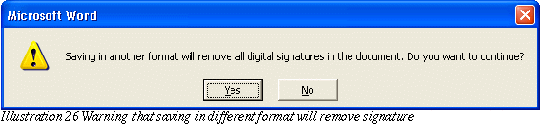
The following warning dialog appears when document will be saved in
a non OpenOffice.org format and the file was already signed:
Warning
Dialog String List
-
|
Item
|
English
|
German
|
Comments
|
|
Dialog text
|
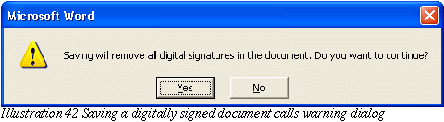
Saving will remove all existing signatures.
This document must be saved as a %PRODUCTNAME document before it
can be digitally signed. Do you want to continue saving the
document?
Button1: Yes
Button2: No
|
##
|
[[Yes] button saves the document in the
choosen format.
[No] button
aborts the saving and goes back to the Save dialog.
|
The following warning dialog appears when the document is saved in a
non OpenOffice.org format and should be signed ("Save and Sign"
functionality):
Warning Dialog String List
-
|
Item
|
English
|
German
|
Comments
|
|
Dialog text
|
This document must be saved as a %PRODUCTNAME
document before it can be digitally signed. Do you want to save
in the %PRODUCTNAME format and continue signing?
Button1: Yes
Button2: No
|
##
|
[[Yes] button saves the document in the
OO.org format using the current filename and location.
[No] button
aborts the signing process.
|
-
|
Item
|
English
|
German
|
Comments
|
|
Dialog
text
|
Saving will
remove all existing digital signatures in the document. Continue
with save?
Button1: Yes
Button2: No
Button3: Sign
& Save
|
##
|
[Yes] button
saves the document
[No] button
aborts the saving
[Sign &
Save] Calls Digital Signature dialog
|
6.5 Digital Signatures Dialog
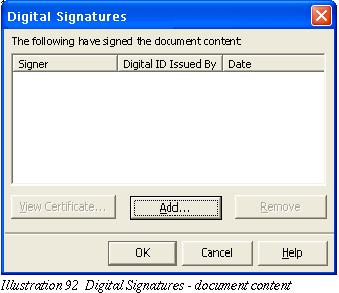
The following dialogs are called when a document
has to be signed.
6.5.1 Digital Signature Dialog For Documents
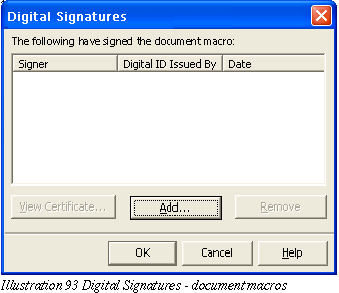
6.5.2 Digital Signature Dialog For Document Macros
6.5.3 Digital Signature Dialog For Program Packages
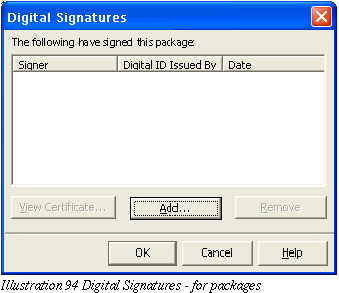
The list box shows all currently assigned
signatures of the current document.
String list
|
Item
|
English
|
German
|
Comments
|
|
Label
|
The following have signed this document:
|
|
|
|
Label
|
The following have signed this package:
|
|
|
|
Label
|
The following have signed the document macros:
|
|
|
|
Label
|
Signer
|
?Signierer?
|
|
|
Label
|
Digital ID Issued By
|
Digitale Signatur ausgestellt
durch
|
|
|
Label
|
Date
|
Datum
|
|
|
Button
|
Add...
|
Hinzufügen...
|
Calls the Select Certificate dialog
described below
|
|
Button
|
View Certificate...
|
Zertifikat anzeigen...
|
Calls the View Certificate dialog described
below
|
|
Button
|
Remove
|
Entfernen
|
|
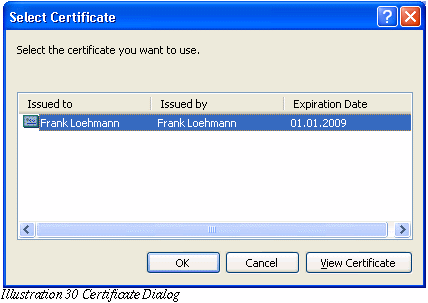
6.5.4 Select Signature (Add...) Dialog
The following dialog is called if the Add...
button is pressed in the Digital Signature Dialog. The view button
allows to view at the current selected certificate. If no certificate
is selected (default when calling the dialog), the button is
disabled.FST: Shouldn't the dialog be named Select Signature ?
Currently this is a bit confussing.
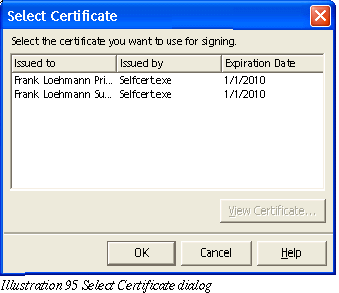
String List
-
|
Item
|
English
|
German
|
Comments
|
|
Title
|
Select Certificate
|
Zertifikat auswählen
|
|
|
Label
|
Issued to
|
Ausgestellt für
|
|
|
Label
|
Issued by
|
Ausgestellt durch
|
|
|
Label
|
Expiration Date
|
Ablaufdatum
|
|
6.5.5 View Certificate Dialog
The Certificate dialog is called when the View
Certificate button is pressed in the Digital Signatures dialog. The
dialog consists of three tabpages.
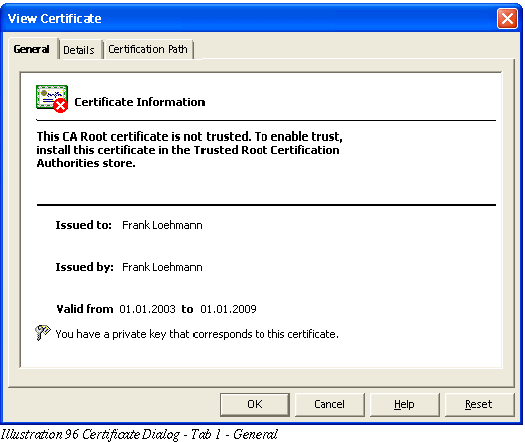
String List
-
|
Item
|
English
|
German
|
Comments
|
|
Tab page Label
|
General
|
|
|
|
Tab page Label
|
Details
|
|
|
|
Tab page Label
|
Certification Path
|
|
|
|
Label
|
Certification Information
|
|
|
|
Label
|
This CA Root certificate is not trusted.
...???
|
|
|
|
Label
|
Issued to:
|
|
|
|
Label
|
Issued by:
|
|
|
|
Label
|
Valid from %SDATE% to %EDATE%
|
|
|
|
Label
|
You have a key that corresponds to this
certificate
|
|
|
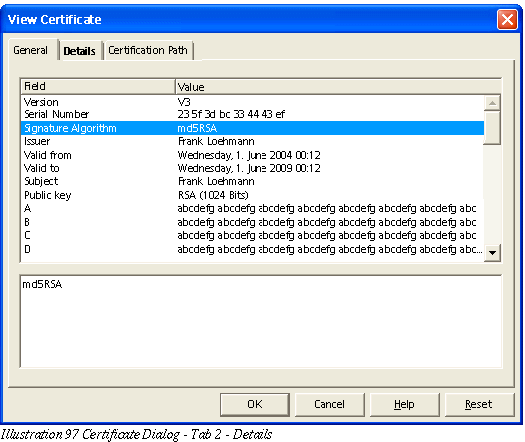
String List
-
|
Item
|
English
|
German
|
Comments
|
|
Column Label
|
Field
|
Feld
|
|
|
Column Label
|
Value
|
Wert
|
|
|
Field label text 1
|
Version
|
|
|
|
Field label text 2
|
Serial Number
|
|
|
|
Field label text 3
|
Issuer
|
|
|
|
Field label text 4
|
Valid from
|
|
|
|
Field label text 5
|
Valid to
|
|
|
|
Field label text 6
|
Subject
|
|
|
|
Field label text 7
|
Public key
|
|
|
|
Field label text 8
|
Enhanced Key Usage
|
|
|
|
Field label text 9
|
Authority Key Identifier
|
|
|
|
Field label text 10
|
Thumbprint algorithm
|
|
|
|
Field label text 11
|
Thumbprint
|
|
|
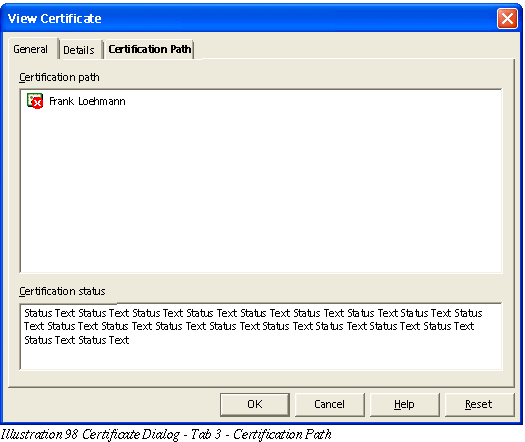
String List
-
|
Item
|
English
|
German
|
Comments
|
|
Button
|
Certification path
|
Digitale Signatur...
|
|
|
Label
|
Certification status
|
Digital signiert
|
|
|
Cert. Status text
|
??
|
|
|
|
Cert. Status text
|
??
|
|
|
6.6 Document
Properties
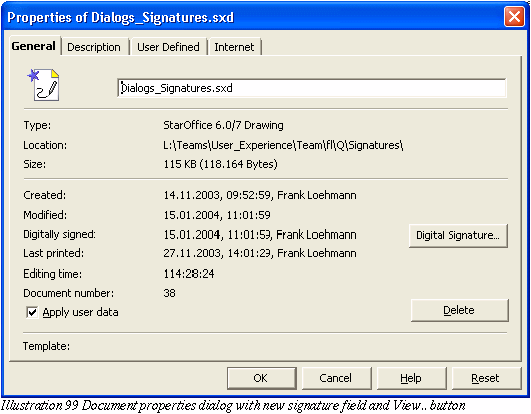
The document properties dialog shows the name,
date and time when the document has been signed. If more than one
signature is assigned to a document, the dialog shows only “Multiple
signed document” instead of name and date of the signer.
-
|
Item
|
English
|
German
|
Comments
|
|
Button
|
Digital Signature...
|
Digitale Signatur...
|
|
|
Label
|
Digitally signed
|
Digital signiert
|
|
|
Label
|
Multiple signed document
|
Mehrfach signiertes Dokument
|
|
The Digital Signature... button calls a the
Digital signature dialog to show all currently assigned signatures.
The Digital Signature dialog allows to remove a signature from the
document.
6.6.1 Changed Default Setting in Tools-Options
In OO.org 1.1 printing sets the document modified
status. This could be disabled by a Tools-Option setting, but the
default is currently set to on, so that printing modifies the
document. This causes a problem, because printing a signed document
prompts for saving the document on closing, but saving would remove
the assigned signature.
Since this is not only a problem when having a
signature, the setting '[ ] Printing sets document modified status'
in Tools-Options-StarOffice-General will be changed to off by
default.
6.7 Macro Security
6.7.1 Security Warning Dialog
The following
dialog appears, if a document contains macros.
[Add Dialog Mockup
Here]
6.7.2 Macro Security Dialog
The Macro dialog is completely redesigned. The old concept of
“trusted pathes” for libraries has been dropped. The new
dialog uses a security level concept. The levels High, Medium and Low
are used. Medium is default.
##FL->MT:
How do we want to handle self written/recorded macros – could
we sign them for personal use on this computer? What will be the
default?
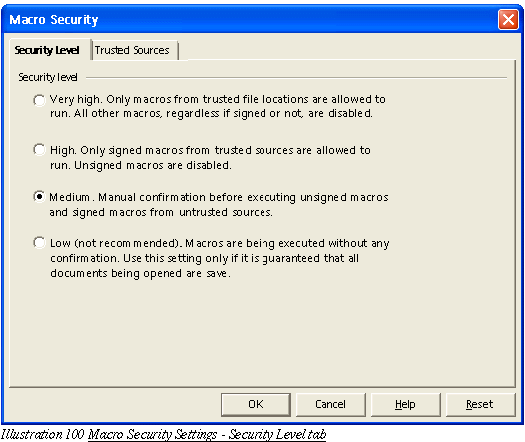
the
settings button switches the tab page to the Trusted Sources one and
sets the focus to the new path field.
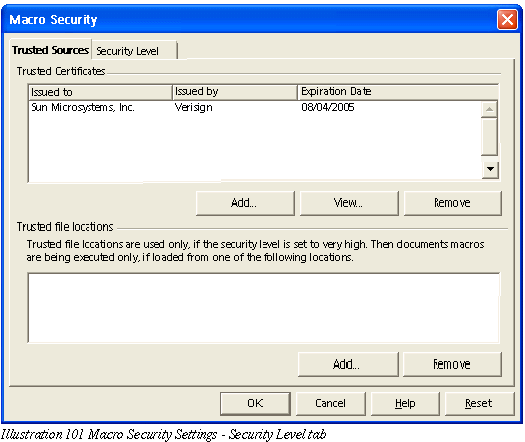
The
Add... button calls a folder picker dialog. The Remove buttons
are only enabled, if an entry is selected within the list box. The
View button is also only enabled, if a certificate is selected and
calls the View Certificate dialog described in chapter 6.5.5 View Certificate Dialog
on page 67.
The
Remove button is disabled as long as nothing is selected in the
Trusted sources list box.
Macro Organizer Dialog String - Modules List
|
Item
|
English
|
German
|
Comments
|
|
Option0
|
Very high.
|
Sehr
hoch.
|
|
|
Option1
|
High. Only
signed macros from trusted sources are allowed to run. Unsigned
macros are not being executed.
|
Hoch.
Nur signierte Makros aus vertrauenswürdigen Quellen werden
ausgeführt. Nicht signierte Makros werden nicht ausgeführt.
|
|
|
Option2
|
Medium. Manual
confirmation before executing untrusted macros.
|
Mittel.
Manuelles Akzeptieren vor dem Ausführen von nicht
vertrauenswürdigen Makros.
|
|
|
Option3
|
Low (not
recommended). Macros are being executed without any confirmation.
Use this setting only if it is guaranteed that all documents
being opened are save.
|
Niedrig
(nicht empfehlenswert). Alle Makros werden ohne Nachfrage
ausgeführt. Diese Einstellung sollte nur benutzt werden,
wenn sichergestellt werden kann, dass nur sichere Dokumente
geladen werden.
|
|
|
Label
|
Trusted source
|
Vertrauenswürdige
Quellen
|
|
|
Button1
|
Add...
|
Hinzufügen...
|
|
|
Button2
|
View
Signature...
|
Signatur
Ansehen...
|
|
|
Button3
|
Remove
|
Entfernen
|
|
|
|
|
|
|
6.7.3 Trust Source of Macro Dialog for Signed
Macros
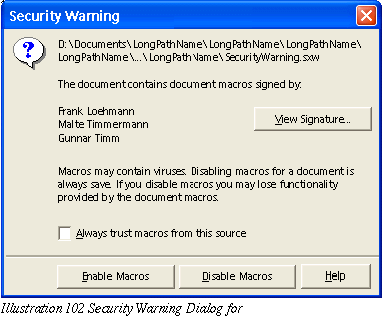
OO.org raises a dialog if a signed macro will be
loaded with the document and it's source has not been trusted before.
This dialog allows the user to add the source to trusted sources and
execute the macro.
String List
|
Item
|
English
|
German
|
Comments
|
|
|
|
|
|
|
|
|
|
|
6.7.4 Enable/Disable Document Macro Dialog for Unsigned Macros
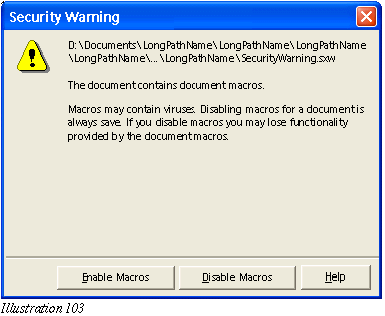
String List
|
Item
|
English
|
German
|
Comments
|
|
|
|
|
|
|
|
|
|
|
6.8 Error Conditions
None
7 Future Tasks (not relevant for OO.org 2.0)
The following tasks are not planned to be
implemented for OO.org 2.0.
7.1 Signing of Sections in Writer
OO.org Writer
allows to sign sections independently from signing the whole
document.
A signed section is automatically write protected (password is
optional).
The
signature of a section gets lost, if the protection of the section
gets removed.
A
double click on the signed icon in the status bar shows the
signature.
Only
the content of the section will be signed. The formatting
(i.e. paragraph templates) is not signed. This allows the section to
be an active part of the document.



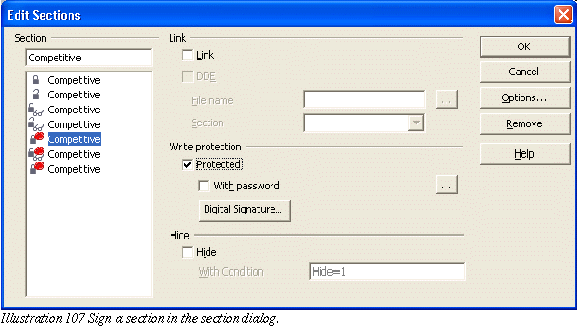
Icons
will be provided directly by Stella Schulze
7.2 Signing of Table Sheets in Calc
OO.org Calc offers
the possibility to sign table sheets independently from signing the
whole document. The table sheet will be signed as is with references,
with fields and formulas.
A signed table sheet gets protected without password.
The
signature of a table sheet gets lost, if the content of the signed
sheet will be modified.
A
double click on the signature icon shows the signature.

The new password dialog layout will be used for protect document and
protect table dialog
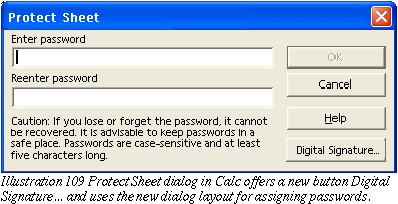
Protect
Sheet Strings
-
|
Item
|
English
|
German
|
Comments
|
|
Button
|
Digital Signature...
|
Digitale Signatur...
|
|
7.2.1 Other Future Tasks
8 Legal
Issues
None
9 Notes
10 References and Links
Signatures:
http://www.w3.org/Signature/
Here is a list of
rules and regulations that have special security requirements:
Government
Paperwork Elimination Act (GPEA)
Health
Insurance Portability and Accountability Act (HIPAA)
21 CFR Part 11
(pharmaceutical industry)
German Act
regarding Digital Signatures
(German: “Signaturgesetz”
- http://www.bsi.de/esig/basics/legalbas/sigg2001.pdf)
Electronic
Signatures Directive by the EC
(http://www-personal.umich.edu/~rmann/Statutes/Electronic%20Signatures%20Directive.PDF)
European
Electronic Signature Standardization Initiative (EESSI)
www.osci.de ,
http://www.bund.de/BundOnline-2005-.6164.htm
Illustration 1 File Save
dialog in MS Office XP with open Tools menu 12
Illustration 2 File Open
dialog in MS Office XP with open Tools menu 13
Illustration 3 Security
dialog of MS Office XP 14
Illustration 4 Warning if
track changes warning is active an user saves, prints or send the
document 14
Illustration 5 Dialog
comes up on loading a doc, if read-only was recommended by the
author 14
Illustration 6 Macro
Security dialog – Security Level table 15
Illustration 7 Macro
Security dialog – Trusted sources tab 15
Illustration 8 Encryption
method can be chosen in Encryption Type dialog called by the
Advanced button of the security dialog 16
Illustration 9 Protect
Document dialog 16
Illustration 10 Word XP
Tools Menu calls dialog shown in Illustration 9 16
Illustration 11 Button
changes to Unprotect Document in Security dialog after choosing
Document Protection for current document 17
Illustration 12 Dialog to
confirm a password to ensure that the user did not make a typo when
entering the password 17
Illustration 13 Problem
when confirming the dialog with two given passwords – the user
does not know which password he has to confirm 18
Illustration 14 Warning
Dialog if the user changes the file format to not MS one 18
Illustration 15 Open a
password protected file raises dialog 18
Illustration 16 Warning
dialog if wrong password has been entered while opening the
document 19
Illustration 17 Second
password dialog to enter write access password 19
Illustration 18 Warning
dialog if incorrect password has been entered 19
Illustration 19 Save
options dialog - called from the Options menu in the file Save
dialog 20
Illustration 20
Self-signed digital certificate 21
Illustration 21 Digital
Signatures dialog of MS Office XP 21
Illustration 22 Warning
if a signature is added to a document and document does not show all
it's content 22
Illustration 23 Document
has to be saved in Word Format 22
Illustration 24 Warning
if track changes is active when signing a document 22
Illustration 25 Warning
that unsaved documents have to be saved in Word format before
signing 22
Illustration 26 Warning
that saving in different format will remove signature 22
Illustration 27
Certificate Dialog – General tab 23
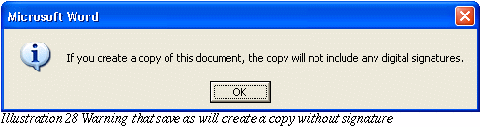
Illustration 28 Warning
that save as will create a copy without signature 23
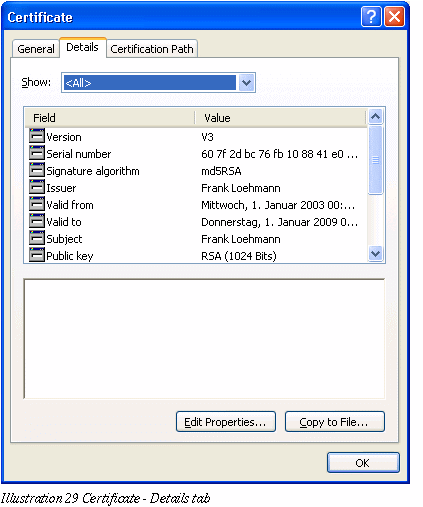
Illustration 29
Certificate - Details tab 24
Illustration 30
Certificate Dialog 24
Illustration 31
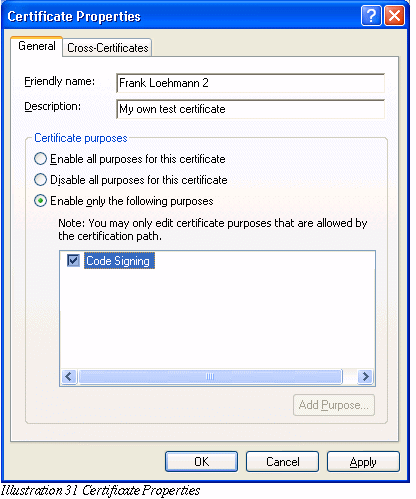
Certificate Properties 25
Illustration 32
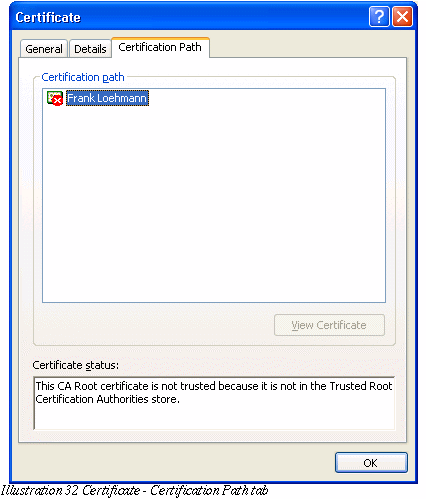
Certificate - Certification Path tab 26
Illustration 33
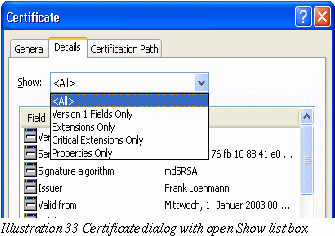
Certificate dialog with open Show list box 26
Illustration 34 Digital
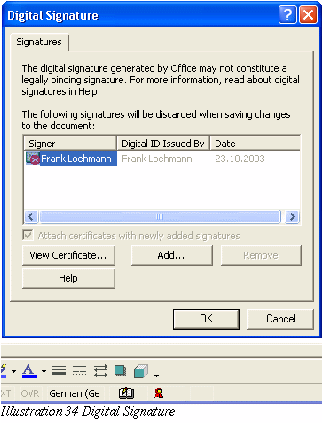
Signature 27
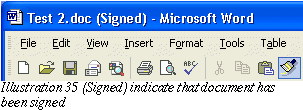
Illustration 35 (Signed)
indicate that document has been signed 27
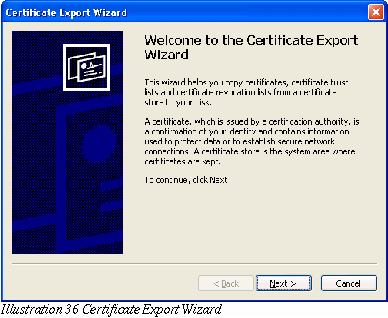
Illustration 36
Certificate Export Wizard 27
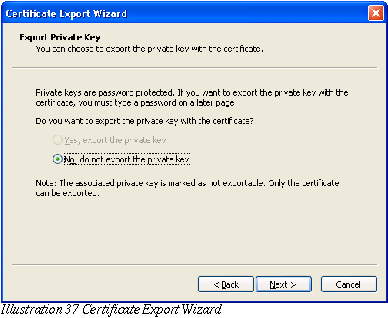
Illustration 37
Certificate Export Wizard 28
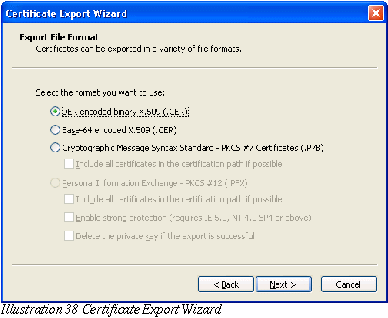
Illustration 38
Certificate Export Wizard 28
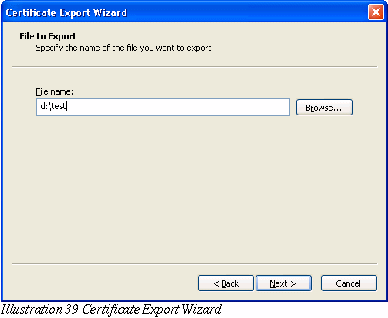
Illustration 39
Certificate Export Wizard 29
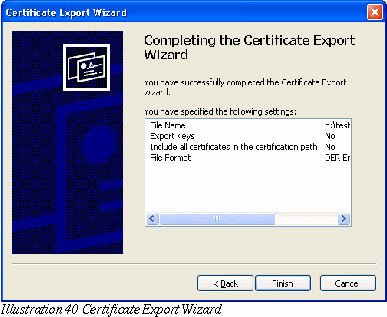
Illustration 40
Certificate Export Wizard 29
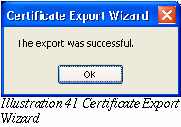
Illustration 41
Certificate Export Wizard 29
Illustration 42 Saving a
digitally signed document calls warning dialog 30
Illustration 43 Mozilla –
Preferences 31
Illustration 44 Security
Device Manger dialog 31
Illustration 45
Certificate Manager dialog 32
Illustration 46
Certificate Manager dialog 32
Illustration 47
Certificate Manager dialog 33
Illustration 48
Certificate Manager dialog 33
Illustration 49 Editing a
certificate 34
Illustration 50 View a
certificate 34
Illustration 51 View a
certificate 35
Illustration 52 Self
Signing Security Dialog 36
Illustration 53 Tools
menu with two signature related functions 36
Illustration 54 Digital
signatures menu is also available in task pane 37
Illustration 55 Compare
two versions of a signed document 37
Illustration 56 Sign
document dialog 37
Illustration 57 Show
options enlarges dialog and offers additional functionality 38
Illustration 58 Reasons
list box offers special settings in Signing dialog 38
Illustration 59 Document
Security dialog 38
Illustration 60 Display
Settings Dialog 39
Illustration 61 Document
security dialog – list box call dialog when entry has been
selected 39
Illustration 62 Dialog
called via Acrobat Standard Security entry in security options list
box 40
Illustration 63 Login
Dialog 40
Illustration 64 Create a
new user 41
Illustration 65 Self
signing security dialog 41
Illustration 66 Self
signing security dialog 42
Illustration 67 Self
signing security dialog 42
Illustration 68 Self
signing security dialog 43
Illustration 69 Called
via New (appearance) button 43
Illustration 70 Trust a
certificate 44
Illustration 71 E-mail a
certificate 44
Illustration 72 Signature
with default representation in the document 45
Illustration 73 Context
menu on signature 45
Illustration 74 Signature
properties 46
Illustration 75 Verify
identity 46
Illustration 76
Certificate Attributes 47
Illustration 77 Macro
Security in Word XP 48
Illustration 78 Tools -
Digital Signature Dialog in Visual Basic Editor 48
Illustration 79 Select
Certificate dialog (called by Choose... button) 48
Illustration 80 MS Office
Security Warning Dialog 49
Illustration 81 Set a new
password 55
Illustration 82
Overworked enter password dialog 56
Illustration 83 Signed
seal in Writer status bar 60
Illustration 84 Signed
seal in Calc status bar 60
Illustration 85 Signed
seal in Draw and Impress status bar 60
Illustration 86 Signed
Marco library is loaded in the integrated development
environment. 60
Illustration 87 New note
"(signed") in the title bar of an application 61
Illustration 88 Digital
Signatures - document content 63
Illustration 89 Digital
Signatures - document macros 63
Illustration 90 Digital
Signatures - for packages 64
Illustration 91 Select
SignatureCertificate dialog 65
Illustration 92
Certificate Dialog - Tab 1 - General 66
Illustration 93
Certificate Dialog - Tab 12 - GeneralDetails 67
Illustration 94
Certificate Dialog - Tab 3 - Certification Path 68
Illustration 95 Document
properties dialog with new signature field and View.. button 69
Illustration 96 Macro
Security Dialog could be called by the Macro Security button in the
Security tab 70
Illustration 97 Signed
section if Writer – Version A 71
Illustration 98 Signed
section in Writer - Version B 71
Illustration 99 Signed
section in Writer - Version C 71
Illustration 100 Sign a
section in the section dialog. 72
Illustration 101 A table
sheet could be signed in Calc 72
Illustration 102 Protect
Sheet dialog in Calc offers a new button Digital Signature... and
uses the new dialog layout for assigning passwords. 72